
Kinsta Review 2026: Installation, Usage, Costs, Performance & Alternatives
Kinsta Wordpress Hosting Review by ArdentSupport : an independent hosting provider review site. Managed WordPress hosting on Google Cloud — tested and reviewed by the Ardent Support team.

Overall rating
Ratings breakdown
Price History
Track how Kinsta's pricing has changed over the last 12 months.
Current Price
USD 26.00/mo
Lowest Recorded
USD 24.50
Highest Recorded
USD 26.00
Last Updated
Jul 16, 2026
Kinsta has spent the last few years building a reputation as one of the most polished managed WordPress hosts on the market. It runs entirely on Google Cloud Platform's premium tier, wraps everything in the MyKinsta dashboard, and targets freelancers, agencies, and businesses that don't want to think about server maintenance. This review walks through installation, day-to-day usage, the settings you'll want to max out for performance, real costs, benchmark data, how it stacks up against alternatives, and our own verdict from the Ardent Support team.
What Is Kinsta?
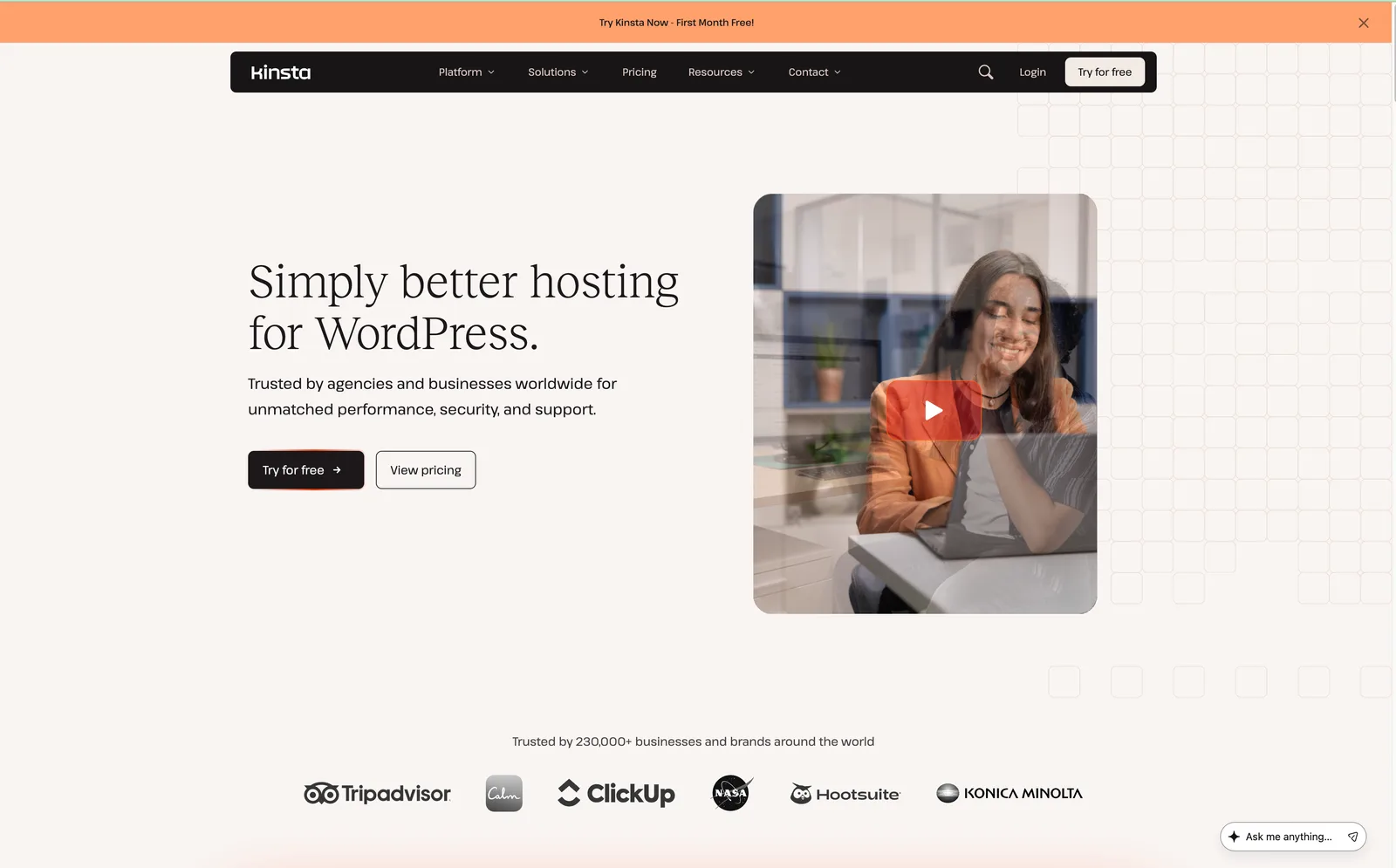
Kinsta is a fully managed WordPress hosting platform built on Google Cloud's C2/C3D compute-optimized machines, with Cloudflare Enterprise sitting in front of every site for CDN, WAF, and DDoS protection. Unlike shared hosting providers, Kinsta doesn't let you host anything other than WordPress — in exchange, it automates updates, security scanning, backups, and scaling so you don't have to.
Plans are organized into three families:
- Single Site plans – one WordPress install, tiered by monthly visits and storage
- WP plans – multiple installs, aimed at freelancers and small teams
- Agency plans – 20–60+ installs with a dedicated account manager
Installation: Getting Your First Site on Kinsta
Kinsta doesn't use cPanel or traditional one-click installers — everything happens through MyKinsta, its custom dashboard. Here's the process from signup to a live site.
Step 1: Create Your Account and Add a Site
After signing up, you land in MyKinsta and click Add Site. You get three options:
- Create a new WordPress site – Kinsta spins up a clean WordPress install for you
- Migrate an existing site – use Kinsta's free migration plugin or request a manual migration by their team
- Clone an existing Kinsta site – useful for spinning up staging or duplicate environments
Step 2: Choose a Data Center
Kinsta lets you pick from 37 Google Cloud data center locations. Choose the one closest to your target audience — this directly affects Time to First Byte (TTFB).
Step 3: Set Your Domain and SSL
Point your domain's DNS to Kinsta's nameservers or use the provided A/CNAME records. Free SSL certificates via Cloudflare are issued automatically once DNS propagates — no manual certificate generation needed.
Step 4: Migration (If Moving an Existing Site)
For sites moving from another host, Kinsta offers unlimited free migrations on most plans. You can either:
- Install the Kinsta Migration plugin on your old site and let it push the site over automatically, or
- Submit a migration request and have Kinsta's team handle it manually (recommended for complex sites with custom configurations)
Typical migration time is a few hours for small sites, up to 24–48 hours for larger, more complex WooCommerce stores.
Step 5: Go Live
Once DNS has propagated and you've confirmed the staging URL works correctly, you flip the domain over. Kinsta's setup wizard flags common issues (missing SSL, broken redirects) before you finalize.
Usage: Living Inside MyKinsta
Day-to-day, almost everything happens in the MyKinsta dashboard, which is widely regarded as one of the cleanest control panels in the hosting industry.
Key day-to-day tools:
- Staging environments – one-click staging on every plan, with push/pull between staging and live
- Automatic + on-demand backups – daily backups retained for 14 days by default, with the option to trigger manual backups before big changes
- Edge Caching – full-page caching served directly from Cloudflare's edge network, bypassing your server entirely for cached requests
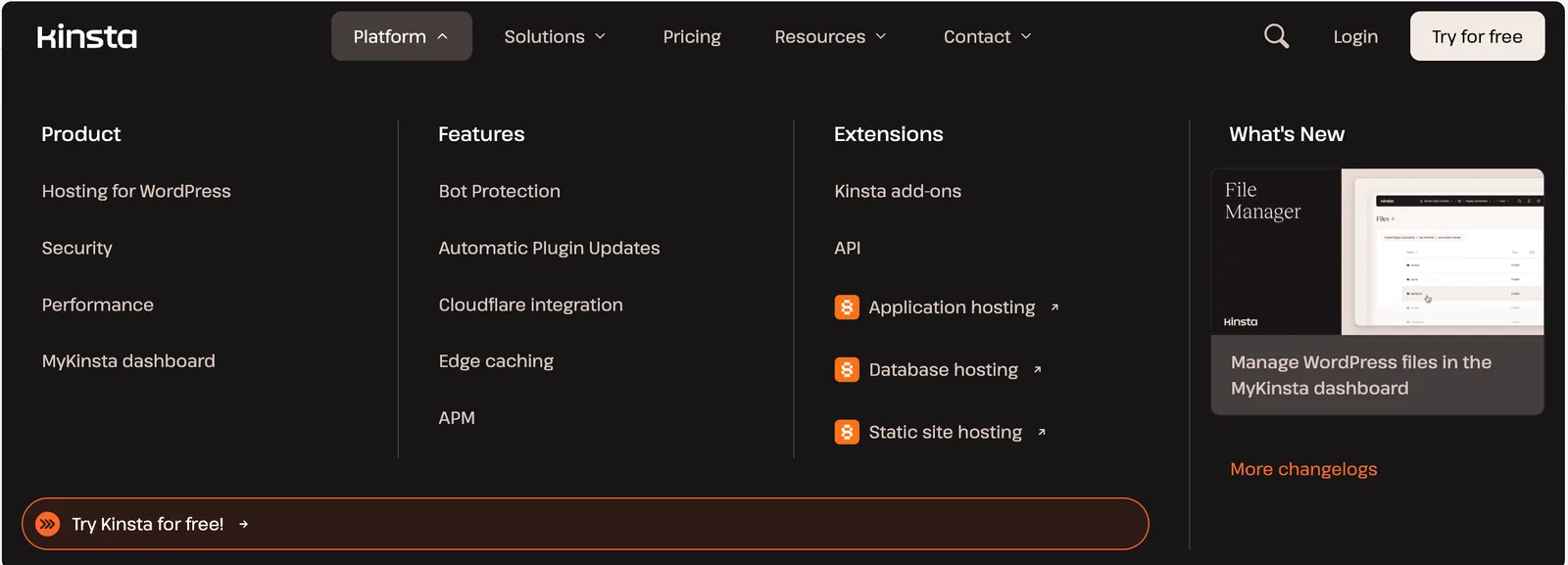
- Redis and Object Cache Pro – available as add-ons for database-heavy sites
- APM (Application Performance Monitoring) – built-in tool to trace slow queries, plugin conflicts, and PHP bottlenecks
- DevKinsta – a free local development app for building and testing sites before pushing them live
- User management & 2FA – granular team roles for agencies managing multiple client accounts
Support is chat-only (no phone support), but WordPress-specific technical knowledge from support agents is consistently rated highly across independent reviews.
Max Settings: Getting the Most Out of Kinsta
If you want to push a Kinsta site to its performance ceiling, these are the settings worth maxing out:
- PHP Workers – Higher-tier plans include more PHP workers (parallel processes handling requests). If your site runs WooCommerce or heavy AJAX, request additional workers or upgrade tiers rather than letting requests queue.
- Edge Caching (on) – Turn this on for all static and cacheable pages. It's the single biggest lever for TTFB since requests never touch your server.
- CDN + Image Optimization – Enable Kinsta's CDN for all static assets and turn on automatic image compression/WebP conversion.
- Object Cache Pro (Redis) – Add this for any site with heavy database reads (memberships, large WooCommerce catalogs, custom queries).
- HTTP/3 and Cloudflare settings – Kinsta enables HTTP/3 by default; confirm it's active in the site's Cloudflare settings for faster connection handshakes.
- Geo-relocation – On multi-region audiences, use Kinsta's Application Hosting or multi-region setups (available on higher tiers) rather than relying on CDN caching alone.
- Uptime & downtime monitoring thresholds – Set custom alert thresholds in MyKinsta so you're notified before a traffic spike pushes you into overage territory.
Maxing these out won't change your plan's visit/storage caps, but it will get you as close to the ceiling of your current tier as possible before you need to upgrade.
Costs: What Kinsta Actually Charges (2026)
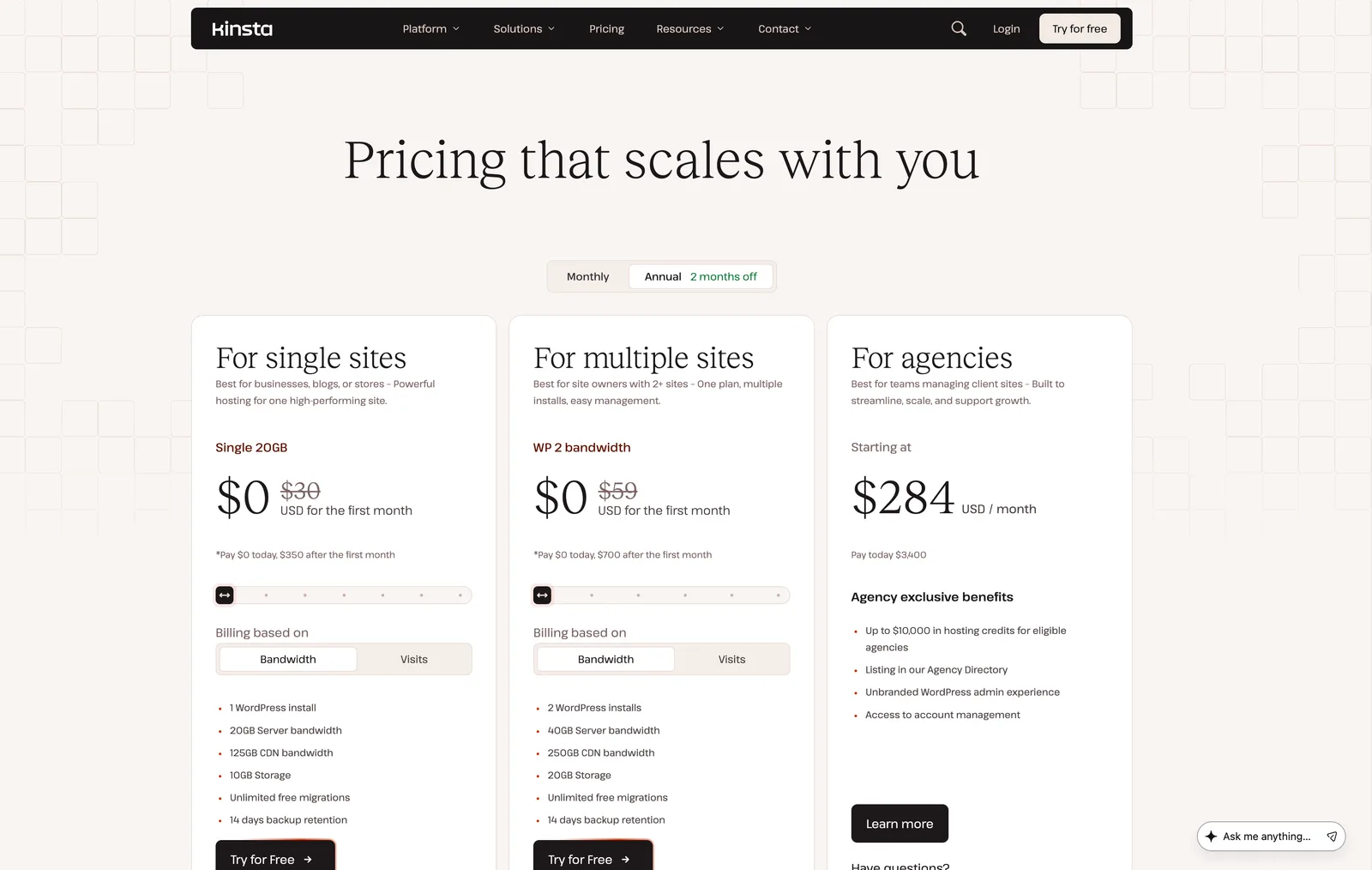
Kinsta sits at the premium end of managed WordPress hosting. Pricing is per month in USD; annual billing typically saves the equivalent of one to two months.
Plan | Monthly Price | Sites | Monthly Visits | Storage |
|---|---|---|---|---|
Starter (Single 35k) | $35/mo ($30/mo billed annually) | 1 | ~25,000–35,000 | 10 GB |
Pro | $70/mo | 2 | ~50,000 | 20 GB |
Business | $115+/mo | Multiple | ~100,000+ | 30 GB+ |
WP 2 (freelancer) | $59/mo (annual) | 2 | Varies | 20 GB |
WP 5 | $115/mo (annual) | 5 | Varies | Higher tier |
Agency (20–60 sites) | Custom pricing | 20–60+ | Custom | Custom |
Enterprise | Custom pricing | Custom | Custom | Custom |
What's included at every tier: Cloudflare Enterprise (WAF + DDoS protection), CDN with 300+ edge locations, free SSL, staging environments, unlimited free migrations, and daily backups retained for 14 days.
Hidden costs to watch for: overage charges once you exceed your plan's monthly visit allowance, add-ons like Object Cache Pro or extra PHP workers, and the jump in price once you outgrow single-site plans and need the Pro or Business tier.
Most single-site owners land comfortably on Starter. Freelancers or small agencies running 2–5 client sites usually land on Pro or a WP-tier plan. Larger agencies go straight to Business or Agency tiers.
Performance: How Fast Is Kinsta, Really?
Kinsta's core performance advantage comes from Google Cloud's premium network tier combined with C2/C3D compute-optimized machines and Cloudflare Enterprise sitting in front of every request.
- Uptime: Consistently benchmarked around 99.9%–99.99% across independent monitoring.
- TTFB (Time to First Byte): Among the fastest of any managed WordPress host when Edge Caching is enabled, since cached requests never reach the origin server.
- Container isolation: Each site runs in its own LXD container, so a traffic spike or security issue on one site doesn't affect others — a meaningful advantage over shared-resource competitors.
- Global reach: 37 data center locations plus a 300+ location CDN network keep latency low for globally distributed audiences.
In head-to-head testing against WP Engine, Cloudways, and Liquid Web, Kinsta consistently ranks at or near the top for raw speed and uptime, with Liquid Web being the closest competitor on TTFB in several independent benchmarks.
Kinsta vs Alternatives: Comparison Table
Host | Starting Price | Infrastructure | Best For | Support |
|---|---|---|---|---|
Kinsta | $35/mo | Google Cloud (dedicated containers) | Non-technical owners, revenue sites, best-in-class dashboard | Chat only |
WP Engine | ~$20–25/mo (varies) | AWS/GCP mix | Agencies needing client tools, white-label portal | Chat + phone |
Cloudways | ~$11/mo (pay-as-you-go) | Choice of AWS, GCP, DigitalOcean, Vultr, Linode | Developers/agencies wanting infrastructure control, non-WordPress apps too | Chat, tiered by plan |
SiteGround | $2.99/mo intro (renews $18+) | Google Cloud (shared) | Budget-conscious buyers, beginners | Chat + phone |
Liquid Web / Nexcess | Varies | Proprietary cloud | WooCommerce stores needing guaranteed uptime | Chat + phone |
Hostinger | ~$4.99/mo (VPS) | Proprietary | Ultra-tight budgets | Chat |
Kinsta and WP Engine are the closest apples-to-apples comparison — both are premium, WordPress-only, fully managed hosts. Kinsta tends to win on dashboard polish and container isolation; WP Engine tends to win on agency-facing tools like white-label client billing and the Genesis Framework bundle. Cloudways undercuts both on price by charging per-server instead of per-site, which becomes significantly cheaper if you're running multiple smaller sites on one server — though it requires more technical comfort since you're managing more of the stack yourself.
Kinsta Alternatives Worth Considering
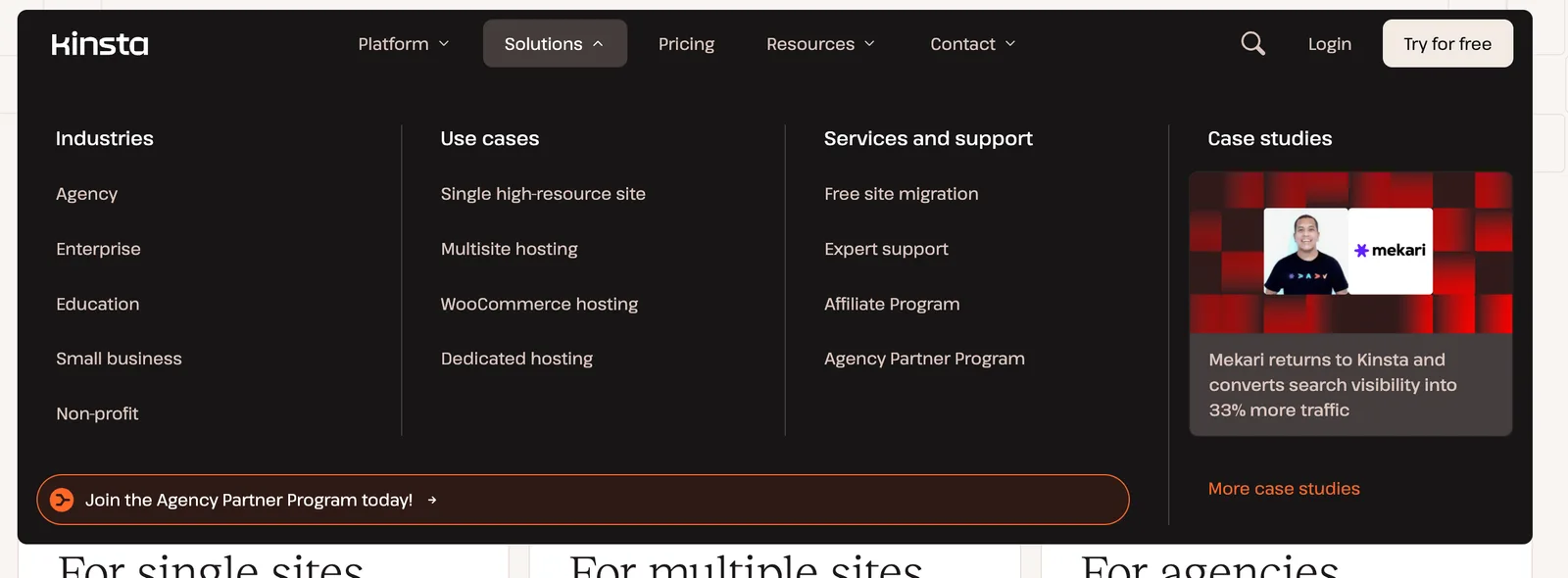
- WP Engine – The closest direct competitor. Better for agencies that need white-label client portals, phone support, and bundled premium themes/plugins.
- Cloudways – Best if you want to choose your own cloud provider (DigitalOcean, AWS, GCP, Vultr, Linode) and pay per-server rather than per-site. Ideal for developers hosting several smaller sites, or non-WordPress projects.
- SiteGround – The budget-friendly option that still runs on Google Cloud infrastructure with solid WordPress-specific tooling and support, at a fraction of Kinsta's price — with tighter resource limits.
- Liquid Web / Nexcess – Strong picks for WooCommerce stores that need guaranteed uptime commitments and ecommerce-tuned infrastructure.
- Hostinger – The budget pick for personal blogs or very small sites that don't need dedicated container isolation.
- Rocket.net – Worth a look if global edge speed is your single biggest priority.
None of these fully replace what Kinsta offers as a complete package — most alternatives win on one specific axis (price, agency tooling, WooCommerce features, or infrastructure flexibility) rather than beating Kinsta across the board.
The Ardent Support Review
At ardentsupport.com, we manage and support WordPress sites for clients across a range of hosting providers, and Kinsta is one we recommend most often when a client's site is genuinely business-critical.
What we like:
- MyKinsta is, hands down, the easiest dashboard we work in — client handoffs and staging pushes take minutes, not hours
- Container isolation means a misbehaving plugin on one client site has never caused a knock-on issue for another
- Migrations have been clean and largely painless, even for moderately complex WooCommerce sites
- Support agents consistently understand WordPress-specific issues rather than just server-level basics
What to watch out for:
- No phone support — if your team needs that as a hard requirement, WP Engine or SiteGround may be a better fit
- The visit-based pricing model means a viral traffic spike can push you into overage costs or force an unplanned upgrade
- It's genuinely the most expensive option on this list at the entry tier — not the right call for a low-traffic personal blog
Our verdict: For client sites, ecommerce stores, and business websites where downtime or slow load times cost real money, Kinsta earns its price. For hobby projects or very early-stage sites, we typically steer clients toward a lower-cost option and revisit Kinsta once traffic and revenue justify the upgrade.
Step-by-Step Guide: Launching a Site on Kinsta
- Sign up and select the plan matching your expected traffic (when in doubt, start one tier below where you think you'll land — upgrading is instant, downgrading requires a support request)
- Create your site in MyKinsta and choose the nearest data center to your audience
- Point your domain's DNS to Kinsta and confirm SSL issues automatically
- If migrating, install the free Kinsta Migration plugin on your old site, or submit a manual migration request
- Enable Edge Caching, the CDN, and image optimization in your site's settings
- Set up a staging environment and make your first round of changes there before touching the live site
- Configure automatic backups and set your preferred retention window
- Add your team with appropriate role-based permissions if you're managing this as an agency
- Set uptime and traffic alert thresholds so you're notified before you hit plan limits
- Go live, and monitor your first week of traffic and performance data in the MyKinsta analytics tab.
Final Verdict
Kinsta remains one of the best managed WordPress hosts available in 2026 if performance, uptime, and a genuinely great dashboard experience matter more to you than shaving dollars off your monthly bill. It's not the cheapest option, and it's not meant to be — it's built for sites where downtime or slow performance has a real cost. If that describes your site, Kinsta is easy to recommend. If you're running a small personal project, a budget host or Cloudways will get you most of the way there for a fraction of the price.
Frequently Asked Questions
Sachin Jangid
Staff Writer


Discussion