
How to Modify/Adjust User Roles and Permissions in WordPress
If you've ever handed someone access to your WordPress site and then quietly panicked about what they could break, this one's for you. Roles and permissions are one of those things nobody thinks about until they have to. You start a site solo, everything's fine, and then one day you bring on a writer. Or a client. Or a developer who needs to poke around the backend. Suddenly the question isn't how do I add them — it's how much do I let them touch?

I've managed enough multi-user sites to have made most of the mistakes already: handing out Administrator access like candy, then wondering why a plugin got deactivated overnight.
This guide walks through how WordPress roles actually work, how to adjust them for different kinds of sites, and the cleanest ways to change permissions — from the built-in dashboard all the way to plugins and a bit of code.
First, what a "role" actually is
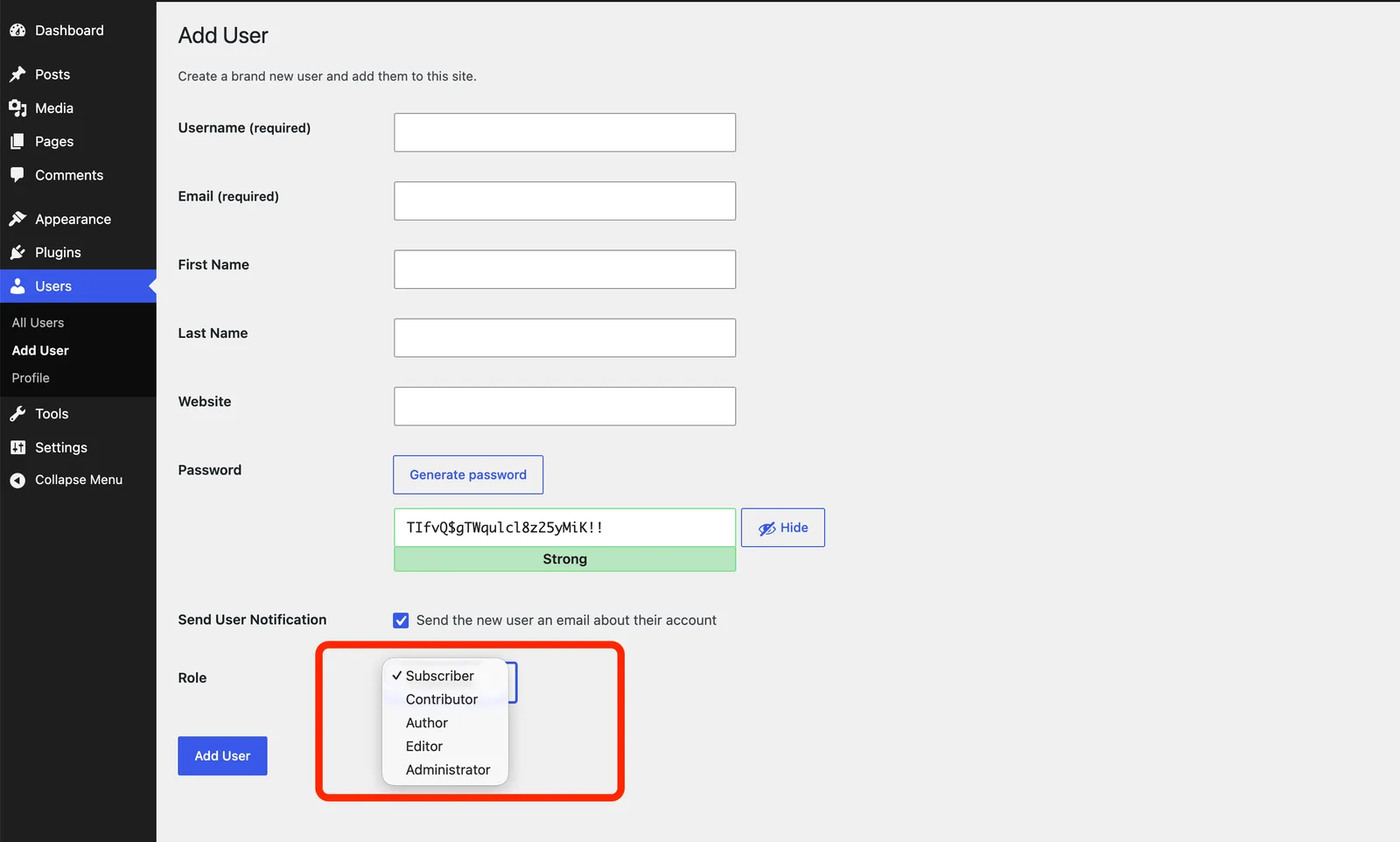
A role in WordPress is just a labeled bundle of permissions. WordPress calls those individual permissions capabilities. So "Editor" isn't really a rank — it's a nickname for a specific set of allowed actions like edit_posts, publish_posts, and moderate_comments.
Here's the part most tutorials skip: WordPress doesn't actually check roles when deciding what you can do — it checks capabilities. The role is just a convenient way to group a standard set of capabilities together. This matters later, because once you understand it, customizing permissions stops feeling like magic and starts feeling like flipping switches.
The default roles, from most to least powerful
A standard single-site WordPress install ships with five roles. There's a sixth — Super Admin — but it only shows up on Multisite networks (more on that later).
Administrator — Full control. Installs and deletes plugins and themes, changes every setting, creates and removes users, and edits or deletes anyone's content. This is the "keys to the kingdom" role. Treat the login the same way you'd treat access to your hosting account, because a compromised admin account means a compromised site.
Editor — Runs the content, not the site. An Editor can publish, edit, and delete any post or page — including other people's — plus moderate comments and manage categories and tags. What they can't touch: plugins, themes, and site settings. Perfect for a managing editor or content lead.
Author — Handles their own work only. Authors can write, publish, edit, and delete their own posts, and upload media. They can't touch anyone else's content and have no access to pages or settings. Good fit for trusted regular writers.
Contributor — Writes, but can't publish. A Contributor can create and edit their own drafts, but everything sits in a "Pending Review" queue until an Editor or Admin approves it. One catch that trips up newcomers constantly: Contributors can't upload images or files. This role is built for guest writers and new team members you're not ready to fully trust yet.
Subscriber — Read and log in, that's basically it. Subscribers can manage their own profile and read content (including login-gated content), but they have no content or dashboard access beyond their profile screen. This is the standard role for registered readers, newsletter signups, and membership-site members.
A quick comparison table
Role | Publish own posts | Edit others' content | Upload media | Manage plugins/themes | Change site settings |
|---|---|---|---|---|---|
Administrator | Yes | Yes | Yes | Yes | Yes |
Editor | Yes | Yes | Yes | No | No |
Author | Yes | No | Yes | No | No |
Contributor | No (draft only) | No | No | No | No |
Subscriber | No | No | No | No | No |
Matching roles to the kind of site you run
Roles aren't one-size-fits-all. The "right" setup depends entirely on what your site is. Here's how I'd approach the common ones.
A multi-author blog or magazine
This is the setup WordPress roles were practically designed for. A typical structure:
- You (the owner): Administrator — and ideally the only one.
- Managing editor: Editor — can shape and publish everyone's work.
- Staff writers: Author — publish their own posts independently.
- Guest writers / freelancers on trial: Contributor — their drafts get reviewed before going live.
The beauty here is that a guest writer literally cannot publish something half-baked to your homepage. It has to pass through an editor first.
A client site (agency work)
This is where the defaults fall short. Clients usually want to edit their own pages and add blog posts — but you don't want them installing random plugins or switching themes and breaking the site you built.
The clean solution is a custom role. Give the client capabilities like editing pages and posts, uploading media, and moderating comments — but strip out install_plugins, switch_themes, and manage_options. They get a comfortable amount of control, and your support calls get a lot shorter. I'll cover how to build this below.
A membership or community site
Here the Subscriber role becomes your foundation. Registered users start as Subscribers, and a membership plugin layers content restrictions on top — gating posts, pages, or whole categories based on which plan someone holds. Many membership plugins even create tiered roles (Bronze, Gold, VIP) that extend the Subscriber base with custom access rules.
An online store (WooCommerce)
Installing WooCommerce quietly adds two roles of its own:
- Customer — assigned automatically to anyone who creates an account at checkout. Think of it as a Subscriber with order history.
- Shop Manager — can manage products, orders, and reports without full admin access. This is the role you give a store manager who handles fulfillment but has no business touching your theme files.
Method 1: Change a user's role from the dashboard (the built-in way)
This is the simplest change and needs no plugin at all. You're just moving someone from one existing role to another.
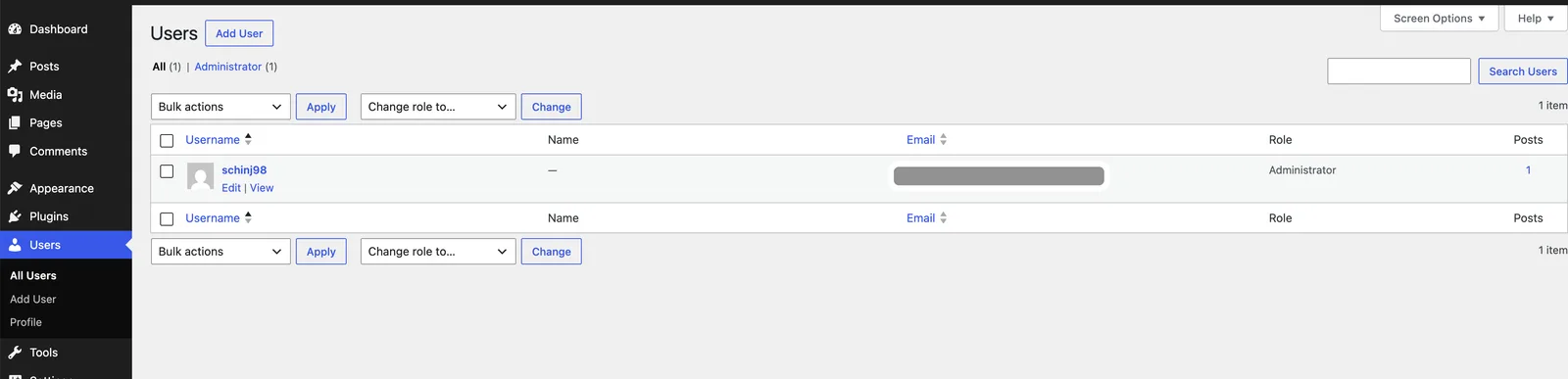
- In your WordPress dashboard, go to Users → All Users.
- Hover over the person you want to change and click Edit (or tick their checkbox).
- Scroll to the Role dropdown.
- Pick the new role and click Update User.
Two things worth knowing:
- Existing content stays put. If you downgrade someone from Author to Contributor, their already-published posts remain published. The role change only affects what they can do going forward.
- Bulk changes are possible. On the All Users screen, tick multiple users, use the "Change role to…" dropdown at the top, and apply. Handy when you're cleaning up a big user list.
Set the default role for new signups
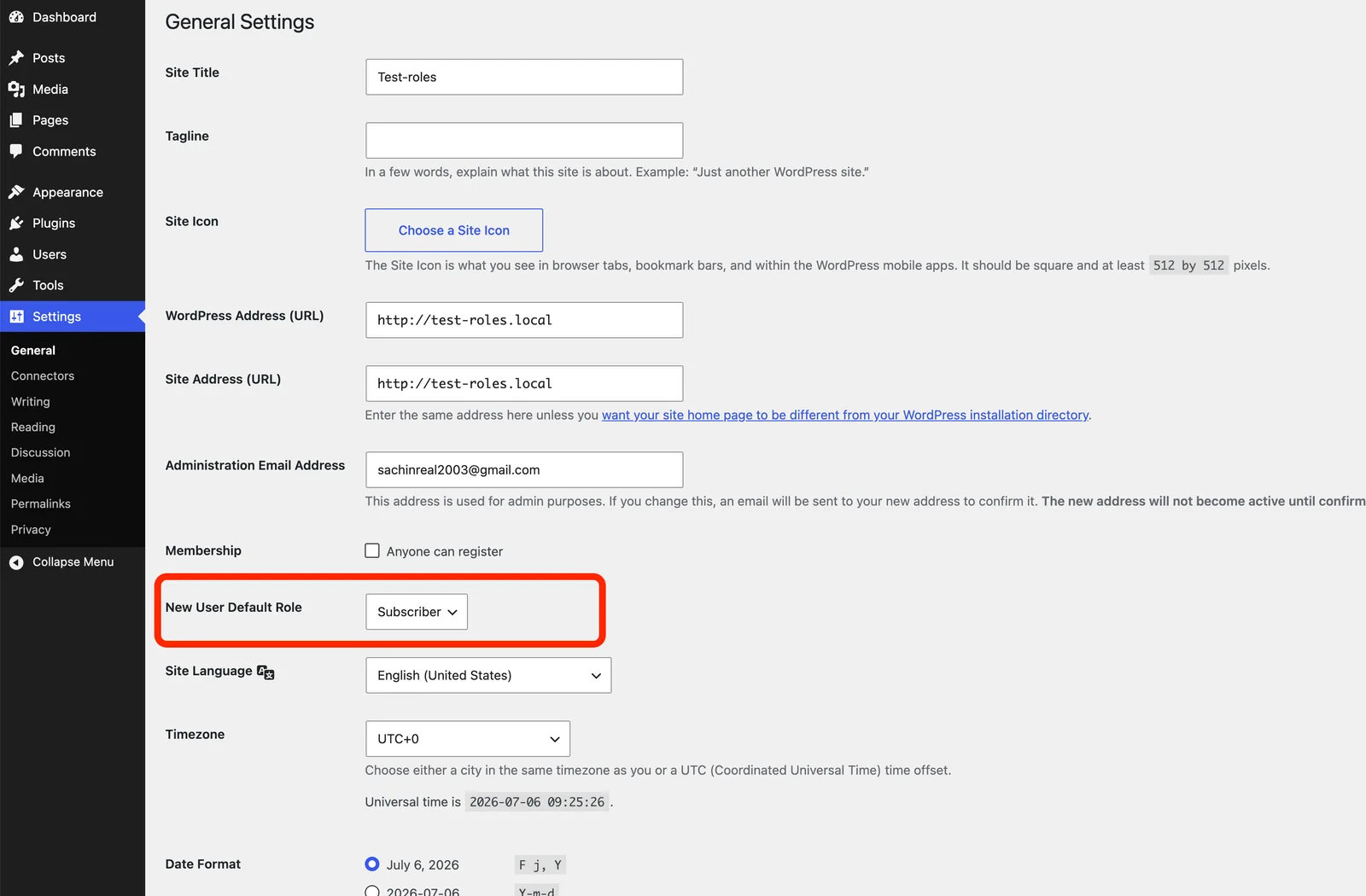
If your site lets people register, check this setting — it's a common security hole. Go to Settings → General → New User Default Role and make sure it's set to Subscriber, never Administrator or Editor.
An open registration form defaulting to Administrator is how sites get taken over.
Method 2: Actually modify what a role can do (using a plugin)
Changing which role someone has is easy. Changing what a role itself is allowed to do — that's where plugins come in. The dashboard can't do this natively.
The most popular tool for this is User Role Editor (free version covers most needs). There's also Members and PublishPress Capabilities, which work similarly — pick whichever you like; the concept is identical.
Here's the general flow with User Role Editor:
- Install and activate the plugin from Plugins → Add New.
- Go to Users → User Role Editor.
- Select the role you want to change from the dropdown (say, Author).
- You'll see a big grid of capabilities with checkboxes.
- Tick or untick the permissions you want. Want Authors to be able to upload to the media library but also moderate comments? Check
moderate_comments. Want Contributors to be able to upload images? Give themupload_files. - Click Update.
That's genuinely it. Because WordPress checks capabilities and not role names, ticking a box instantly changes what every user with that role can do.
Method 3: Create a brand-new custom role
Sometimes none of the five defaults fit. The client-site example from earlier is the classic case — you want something between Editor and Author that fits your exact needs.
With User Role Editor (or Members), you can:
- Open the plugin and choose Add Role.
- Give it a clear name and a short description — something like "Client Manager – can edit pages and posts, no plugin access." A good description saves you from guessing later.
- Start it as a copy of an existing role (start from Editor and remove things, or from Author and add things — whichever is closer to your goal).
- Toggle the exact capabilities you want.
- Save, then assign the new role to a user the normal way via their profile.
A practical example — that Client Manager role would include capabilities like edit_pages, edit_published_pages, upload_files, and moderate_comments, but deliberately exclude install_plugins, switch_themes, and manage_options. The client feels empowered; your site stays intact.
Method 4: The code way (for the developers)
If you'd rather not add a plugin — or you're building something you'll deploy across sites — WordPress gives you functions to do all of this in code. This goes in your theme's functions.php or, better, a small custom plugin.
Add a new role:
add_role(
    'client_manager',
    'Client Manager',
    array(
        'read'                 => true,
        'edit_posts'           => true,
        'edit_published_posts' => true,
        'edit_pages'           => true,
        'upload_files'         => true,
        'moderate_comments'    => true,
    )
);
Add a single capability to an existing role:
$role = get_role( 'author' );
$role->add_cap( 'moderate_comments' );
Remove a capability:
$role = get_role( 'contributor' );
$role->remove_cap( 'delete_posts' );
One important note: add_role() writes the role into your database, so you only need to run it once, not on every page load. A common beginner mistake is leaving the function running permanently — wrap it in a check or run it on plugin activation.
If something breaks: resetting roles
Messed up your capabilities and now an Editor can't publish, or you've got roles behaving unpredictably? It happens — usually from too many custom roles, a plugin conflict, or over-tinkering.
The cleanest fix is WP-CLI (if your host supports it):
wp role reset administrator editor author contributor subscriberThis restores every default role to its factory capability set without touching any user accounts. If you don't have command-line access, most role plugins (including User Role Editor) have a "Restore default roles" button that does the same thing.
A few habits that'll save you later
After managing a bunch of these setups, here's what actually matters:
- Follow the principle of least privilege. Give every person the lowest role that still lets them do their job. Not the most convenient one — the minimum one. Every Administrator account is a potential doorway for an attacker, and a huge share of WordPress break-ins trace back to compromised or weak admin logins.
- Keep admins to a minimum. One or two Administrator accounts per site is plenty. If you find yourself with five admins, ask why.
- Audit quarterly. Every few months, scan your user list. That freelancer from last spring who still has Author access? The developer who finished the project? Remove accounts nobody's using — a forgotten account is a security liability just sitting there.
- Reassign content before deleting a user. When you delete a user, WordPress asks whether to attribute their content to someone else. Do that — otherwise their posts get deleted along with the account.
- Test custom roles before going live. Made a new role? Log in as a user who has it and click around. Verify it can do what it should and can't do what it shouldn't, before real people start using it.
Wrapping up
Roles and permissions look intimidating from the outside, but the whole system boils down to one idea: a role is just a bundle of capabilities, and you can adjust that bundle however you like — from the dashboard, with a plugin, or with a few lines of code.
Start with the defaults, lean on Contributor more than you probably think you should, build custom roles when the defaults don't fit, and audit your users now and then. Do that, and you get the thing everyone actually wants: the right people with the right access, and nobody able to accidentally take down your site.
Got a specific role setup you're wrestling with — a membership site, a tricky client permission, a WooCommerce store? Drop it in the comments and I'll help you map it out.
Frequently Asked Questions
Sachin Jangid
Staff Writer


Discussion